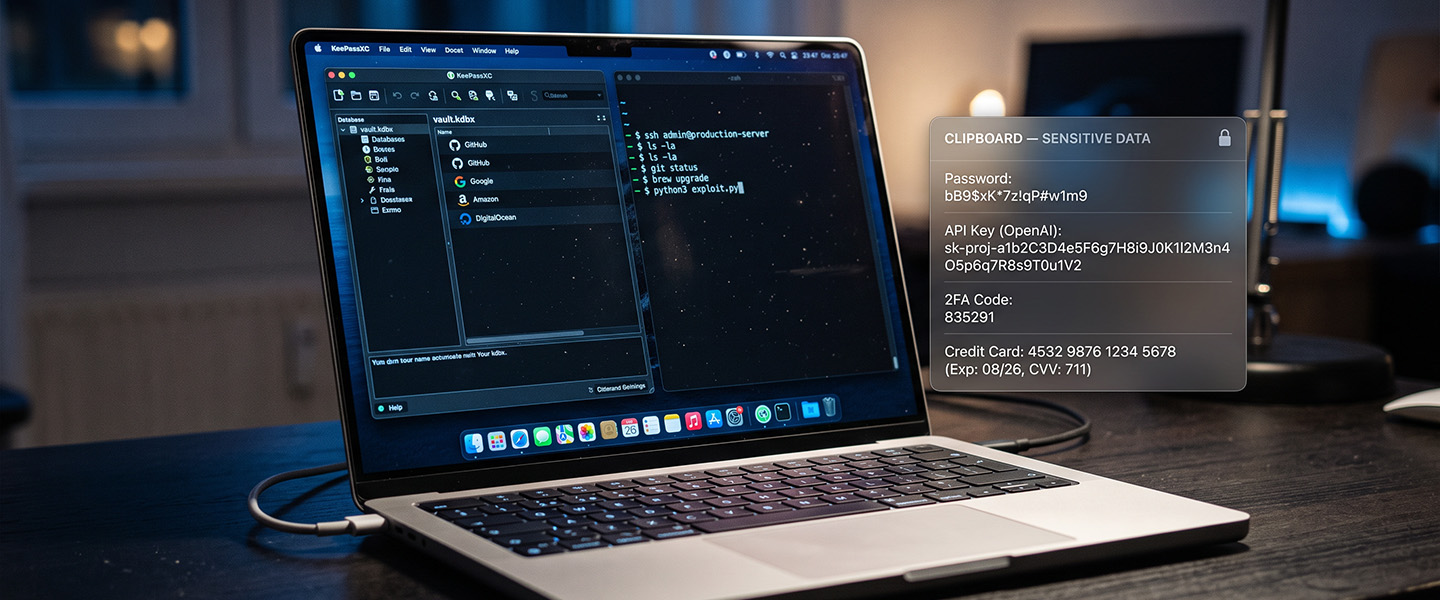
Every time you copy something on your Mac, it goes somewhere. Not into thin air, into your clipboard, where it sits quietly until something else overwrites it. Most people never think about this. Here is why that gap matters more than it seems.
Copy is not temporary
When you copy a password, a one-time code, or an API key, you probably assume it disappears once you paste it. It does not. Your clipboard holds onto that value until you copy something new, until you restart your Mac, or until an app deliberately clears it. In practice, that can mean minutes. Sometimes hours.
During that window, anything with clipboard access on your machine can read it. That includes browser extensions, background utilities, and any app you grant the right permissions to, often without you realizing what you agreed to.
What actually ends up there
Clipboards are not selective. They hold whatever you last copied, regardless of how sensitive it was. In a normal day, that can include:
- Passwords copied from a password manager
- Two-factor authentication codes
- API keys and access tokens copied while working
- Credit card numbers copied during checkout
- Private messages or notes copied for reference
None of this is unusual. It is just how copy and paste works, and it was never designed with sensitive data in mind.
Why this is easy to miss
Clipboard exposure does not announce itself. There is no warning, no visible sign that something is sitting there, and no built-in expiration for most of what you copy. Compare that to a password field on a website, which is masked by default. Your clipboard has no equivalent protection, even though it frequently holds the exact same kind of information.
Closing the gap
The fix is not to stop using copy and paste. It is to make sure sensitive values do not linger longer than they need to. That means detecting when something sensitive has been copied and clearing it automatically, not relying on you to remember to do it yourself.
This is exactly what PasteGuard does. It watches for sensitive patterns, passwords, API keys, credit card numbers, and clears them from your clipboard automatically after a short window. Nothing leaves your Mac. No cloud, no logging, just a clipboard that does not hold onto what it should not.